TL;DR
Editing is my least favorite part of making videos, so I built Screencast Director, a macOS screen recorder that drafts the edit for me. Talk through a demo once: while you're talking it plays in real time, typing without talking gets sped up, and silence gets cut. It zooms to your clicks, captions what you said, and drops retakes. Then you adjust it on a timeline or tell an AI model what to change, and unlike Descript, Camtasia or Screen Studio, you pick the model, the local Whisper model and the prompts. It's a native Mac app, and it's open source.
I don’t mind writing a video. I don’t even mind recording one. Editing is the part I hate. It means sitting there for hours after the fact, watching myself, scrubbing past every “um,” every dead pause, every time I lost my cursor, and every take of a line I flubbed three times.
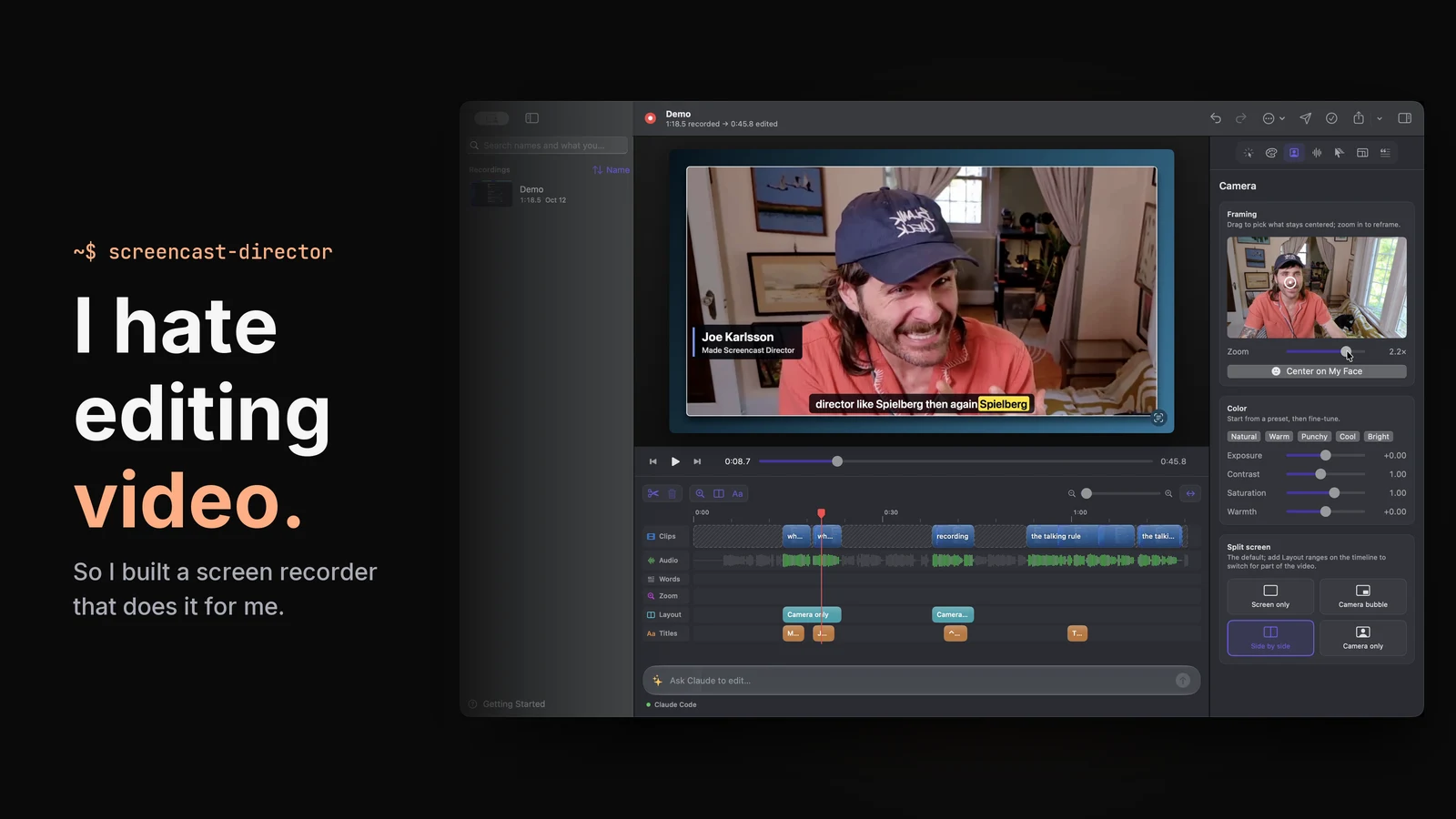
So I built Screencast Director, an open source macOS screen recorder that records your screen and does the boring part of the edit for you. You talk through your demo once. It cuts the dead air, speeds up the typing, zooms in where you click and captions what you said. Then you fix what it got wrong by hand, or you tell an AI model what to change, using the model, the local Whisper model and the prompts you pick. It’s on GitHub, and there’s a short overview on the project page.
Click anything on the timeline and the inspector switches to it.
Why I built it
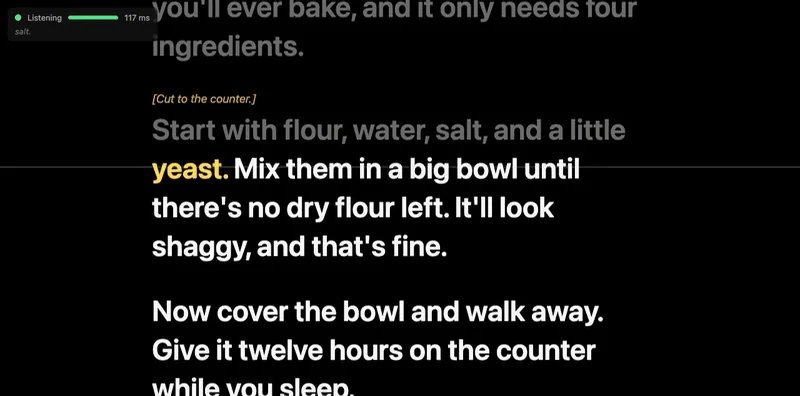
I’ve been making a lot more video lately. Some of it needs tight monologues, and I can’t memorize lines, so in September I built FollowSpot, a teleprompter that listens and follows along as I read. That fixed recording, but every video still turned into an afternoon of watching myself, and I was recording a lot more of them. Editing is the part I’m slowest at, so it’s the part I put off.
Why not Descript, Camtasia or Screen Studio
There are a few great apps for this, and I use them: Descript, Camtasia and Screen Studio. Most of them trim silence. Some have nice transitions. Descript lets you edit a video by editing its transcript, which I love. But none of them had everything I wanted in one place, and as of October 2026 I couldn’t find a way in any of them to bring my own AI: pick the model, use a local Whisper model, or see and change the prompts it follows.
The pro tools aren’t the answer for me either. I’m not a strong enough editor to get much out of Premiere or After Effects, and I don’t care enough to become one.
So I took my favorite parts of each and stitched them into a Frankenstein editor built for how I work: edit by transcript, automatic zooms, silence trimming, Screen Studio’s keyboard shortcuts, and AI editing that I control. In Screencast Director I can:
- Pick the model that does the editing, whether that’s Claude, another provider or a model running on my own machine.
- Transcribe with any whisper.cpp model I install, so my audio never goes to anyone’s cloud.
- See and change the prompts the edits go through, including my own rules and taste, so every video gets edited the same way. They’re plain files in the repo.
By default the editing runs on your Claude Code login, so there’s no API key to paste. Recordings and input logs stay on your Mac, and your video and audio never leave it. The model gets your instruction, the transcript and the edit plan, plus a few still frames if you use Claude Code, so if you want nothing to leave the machine, point it at a local model.
The AI provider menu in Settings.
How it drafts the edit
The draft comes from one rule, which I call the talking rule:
- If you’re talking, it plays in real time.
- If you’re typing and not talking, it fast-forwards.
- If nothing’s happening, it’s cut.
When you stop recording, the app transcribes you on your Mac with whisper.cpp, lines that up with a log of when you clicked and typed (never what you typed), and drafts the edit from it. It adds zooms where you clicked and turns what you said into captions. On one of my demos, a 3:36 recording came out at 2:56.
Restoring a cut, then setting a clip to 2x.
The timeline shows what it did. Solid clips play in real time, striped clips are sped up and labeled with their speed, and the dashed boxes are cuts. If it cut something you wanted, you click the cut and press Restore. The keyboard shortcuts match Screen Studio’s, because those are the ones my hands already know.
Retakes were the other big time sink. Now, when I flub a line, I press ⌃⌥⌘M and say it again, and the draft cuts the bad take and keeps the redo. If FollowSpot is open while I record, the app saves my script with the recording and keeps only the last take of each line I read more than once.
Asking AI for edits
The draft gets most of the way there. For the rest, there’s a box at the bottom of the editor where you type what you want: “tighten the pauses and add a title at the start,” or “side by side for the intro.” Claude (or whatever model I’ve pointed it at) reads the transcript and the edit, changes it, and the timeline highlights what it touched.
The wait while Claude works is sped up 8x.
Profiles, camera, export and publishing
After the edit, there’s still making the thing look like it belongs to you, exporting it in four shapes, and writing the description.
Profiles set your background, fonts, colors, logo and frame, so every video looks the same without fiddling.
Swatches, padding and corners, saved in a profile.
The camera can be a bubble, side by side or full frame, and you can switch it for any stretch of the video. It centers on your face and has basic color grading.
Reframe, center on your face, grade, and change the layout.
Export has presets for YouTube, Shorts, square and 4:5, up to 4K, and renders in the background while you keep working. Vertical crops follow your clicks, so code stays readable on a phone.
Picking Shorts from the Export menu and watching it render.
Publish writes captions, chapters and a description draft, and picks thumbnail frames where you’re smiling.
The thumbnails use my smiling camera frames, with the title laid over them in the profile’s style.
What it doesn’t do yet
It’s version 0.2.0, and it shows in a few places:
- It’s Mac only. It needs Apple silicon and macOS 15 or later.
- It isn’t notarized yet. You can download the app from GitHub, but the first time you open it, macOS makes you click Open Anyway in System Settings > Privacy & Security. It also needs whisper.cpp from Homebrew.
- The AI edits aren’t always right. The timeline shows exactly what changed, so I check every one.
If you make screencasts and hate editing as much as I do, download it from GitHub, tell me what it gets wrong, and if you tune the prompts to your own taste, send me a PR.

Joe Karlsson
Developer Marketing Engineer at CData, leading developer growth for the managed MCP platform that connects AI agents to live enterprise data. Writing about databases, self-hosting, and the things I build. Runs a 60+ container Proxmox homelab with AI-powered automations.
cat newsletter.md
Works on My Machine is my newsletter: thoughts and reactions on tech writing, AI, homelab builds and open source, plus whatever I'm working on. It goes out when I have something to say.
Free, no spam, unsubscribe anytime. Read past issues.
Related Posts
Sep 25, 2026
I Can't Memorize Lines, So I Built a Teleprompter That Listens
FollowSpot is a voice-following browser teleprompter that runs Whisper locally. Why I built it, plus benchmarks of five Whisper models on an M5 Max.

Apr 7, 2026
My Personal Claude Code Skills Repo Accidentally Became Internal Tooling
I built a few Claude Code skills for myself because I was tired of copy-pasting the same prompts. Then my coworkers started asking questions. Here is what happened when a personal productivity tool became team infrastructure.

Sep 1, 2025
Introducing CloudQuery Insights: Cloud Intelligence That Connects the Dots
CloudQuery Insights monitors your complete asset inventory and surfaces interconnected signals across security, cost, policy, and audit data automatically.